

How to Configure Grid View for Graded Assessments
In Outgrow, we have added a new Grid View setup for Graded Assessments. This feature allows users to browse through multiple Questions or Sections/Slides to review or choose options before submitting. This guide will help you set up and use this feature in your Outgrow account.
Why Use Grid View?
The Grid View significantly enhances the assessment experience for a Student/Employee by mimicking the flexibility of paper-based exams. Here are a few examples of how this benefits students:
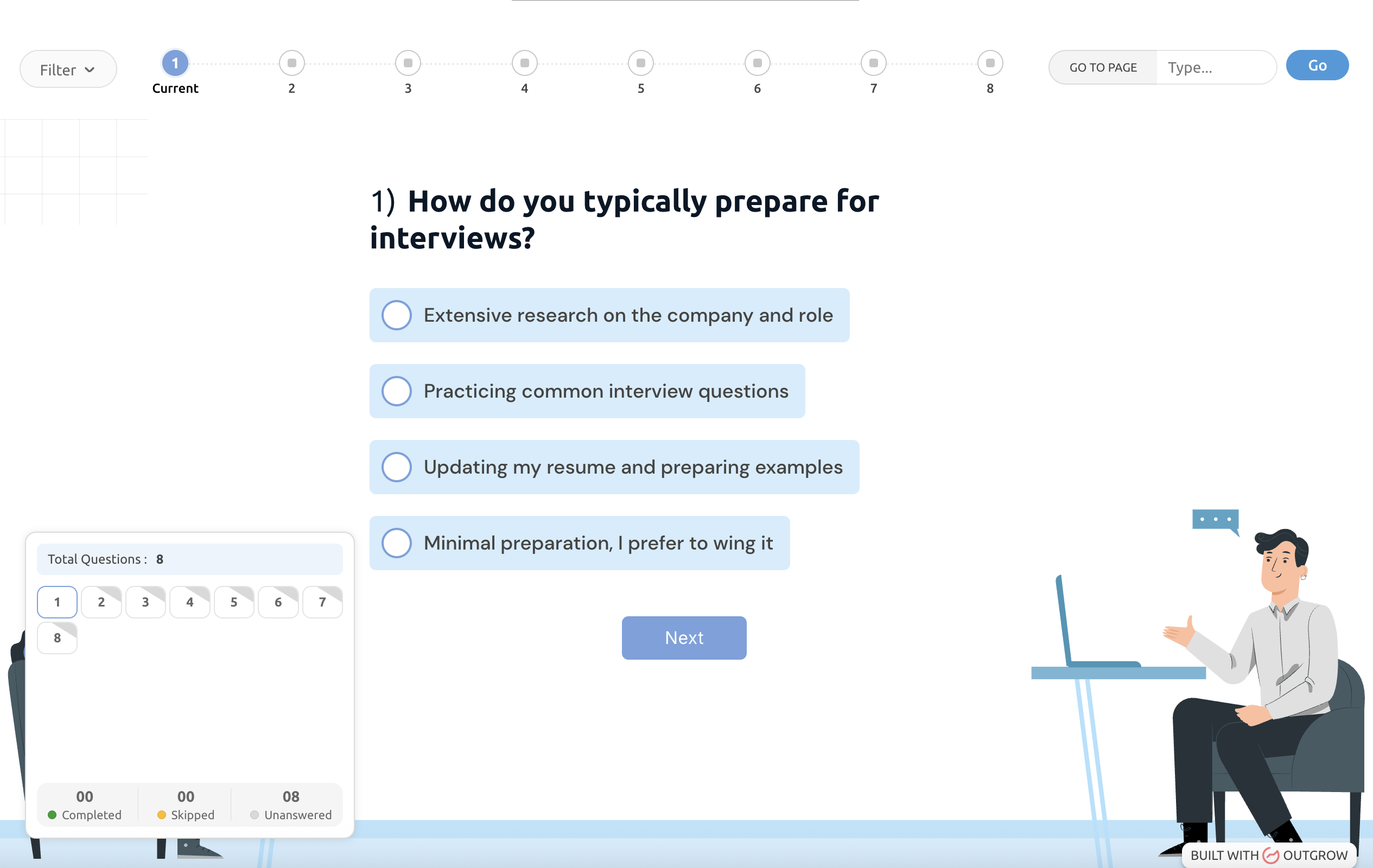
A. Strategic Test-Taking (Skip and Return): In a complex final exam, a student may encounter a difficult question early on. Instead of getting stuck or forced to guess to move forward (as with Auto-Progression), Grid View allows the student to skip the difficult question, navigate via the grid to answer the questions they are confident in, and return to the problematic question later.
B. Multi-Page Case Studies & Reading Comprehension: A generic template might show a long case study on Page 1, with related questions spread across Pages 2, 3, and 4. With Grid View, a student can easily toggle back to Page 1 to reference the source text while answering a question on Page 4, without losing their place.
How to Enable Grid View
To enable this feature in your account, you can follow these simple steps:
A. Log in to your Outgrow dashboard and open the respective content in Build Mode.
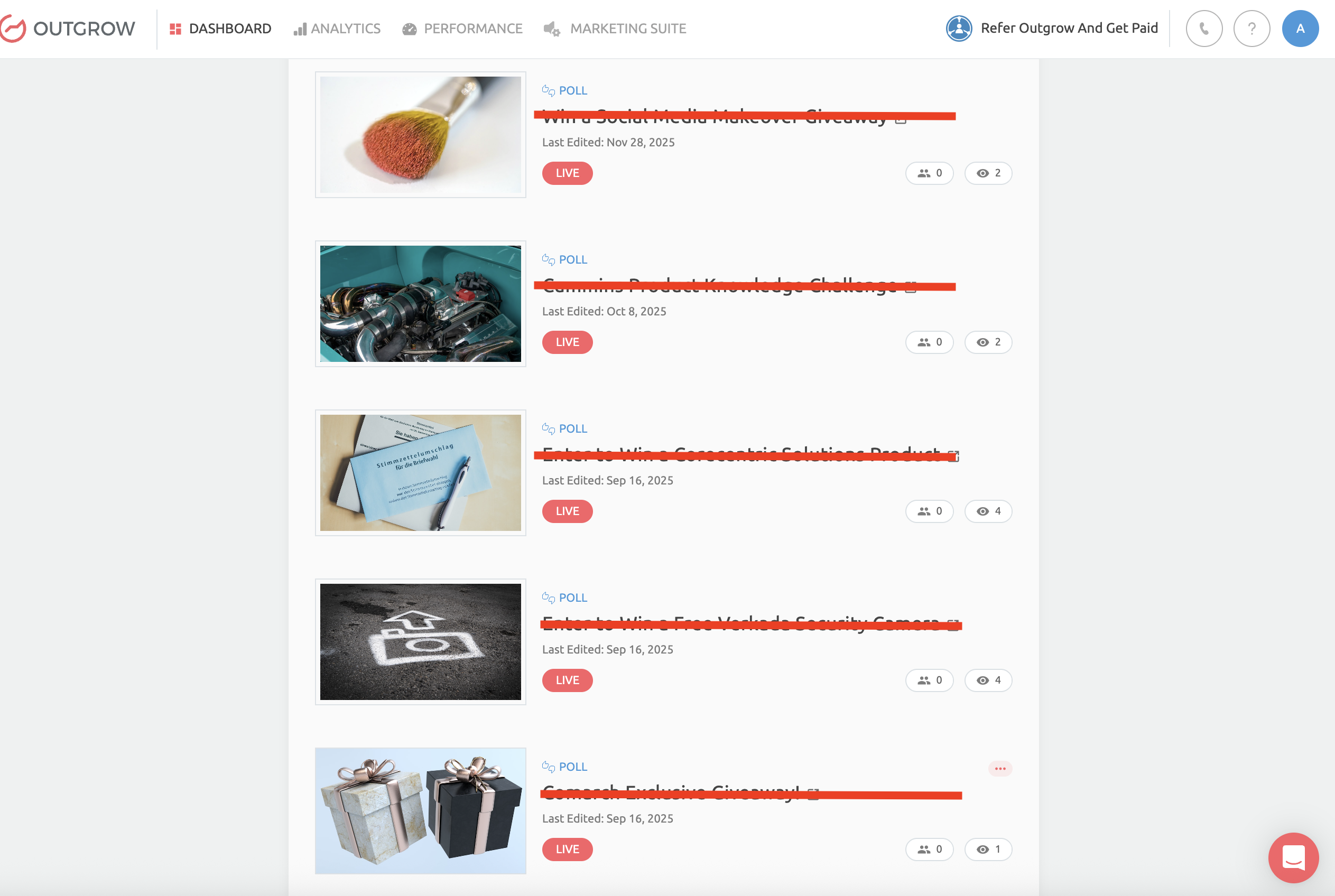
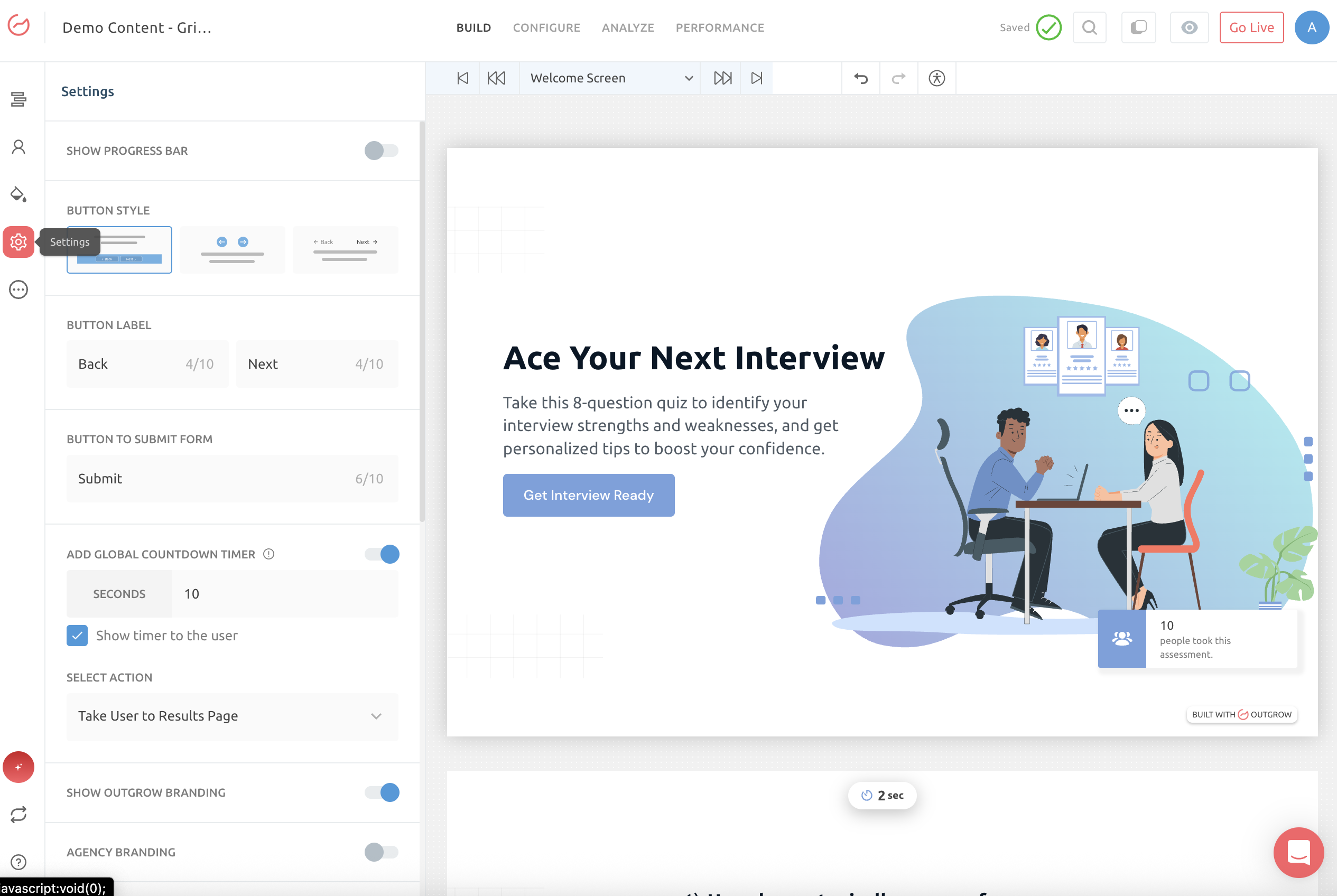
B. Navigate to the Settings icon in the left navigation bar.
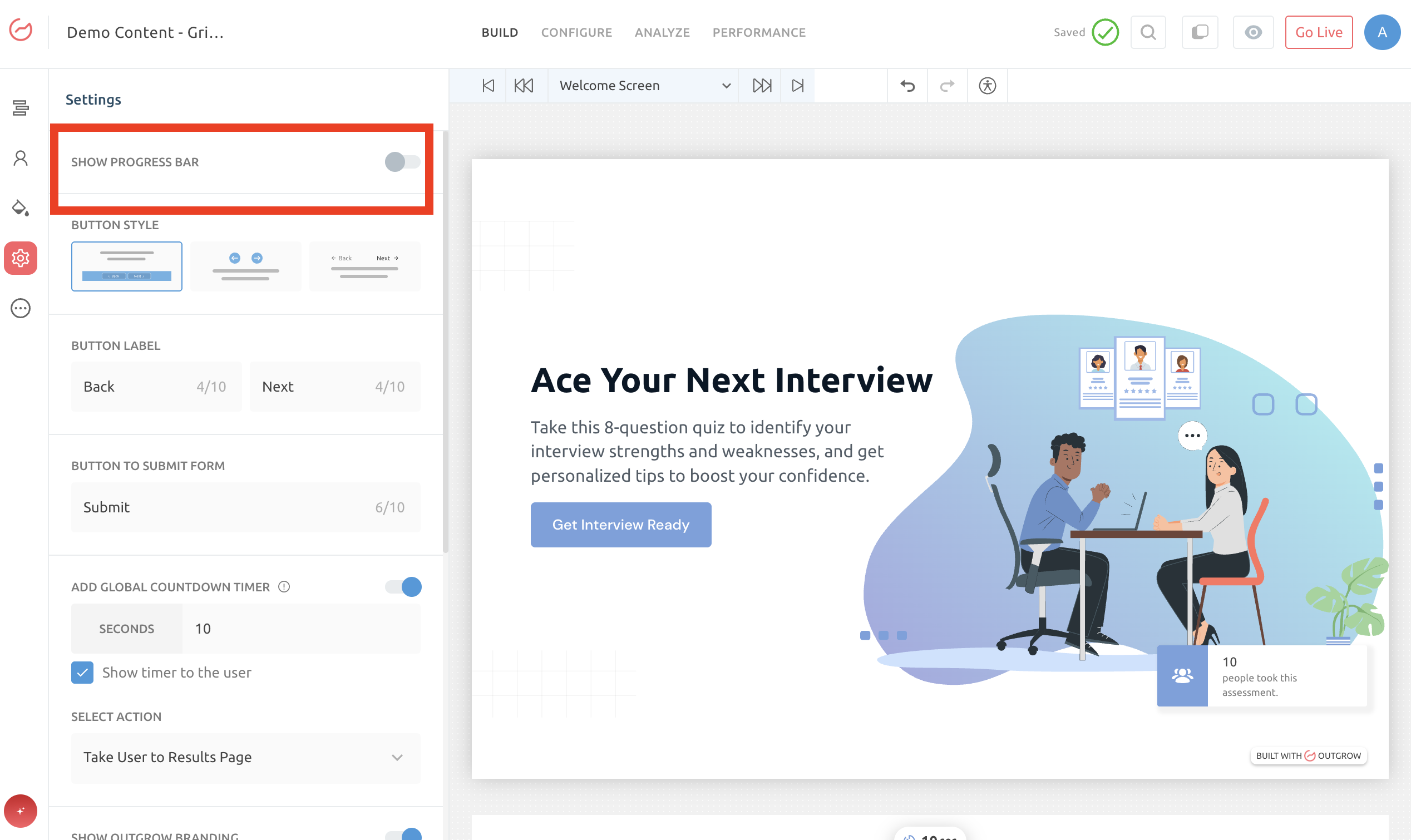
C. Locate and enable the Show Progress Bar Setting toggle.
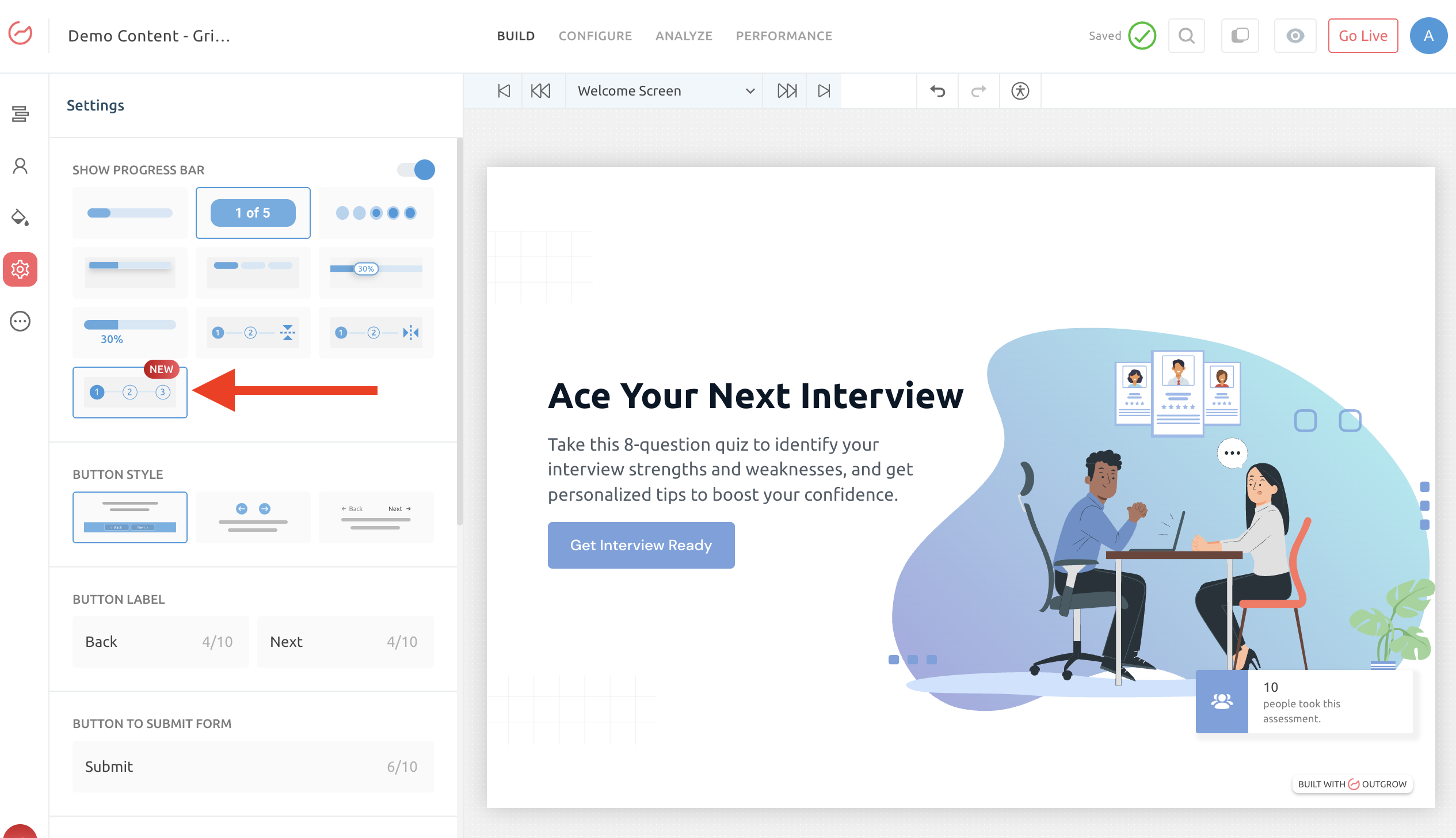
D. Once the Show Progress Bar toggle is enabled, select the Grid View option.
IMPORTANT NOTE
To ensure the Grid View Progress Bar functions correctly, you must adjust a few settings in your content configuration. Please ensure the following features are turned OFF in your Outgrow content piece:
A. Mandatory Questions
B. Auto Progression
C. Lead Form
D. Global Timer
E. Question and Section Randomize Feature
F. Logic Jump
If any of the above settings are enabled, the Grid View Progress Bar cannot be configured for your content.
E. Once the setting is enabled, you can choose to configure whether or not you would like to show Question Filters, the Jump To Page option, or the Mini Map on the question slides.
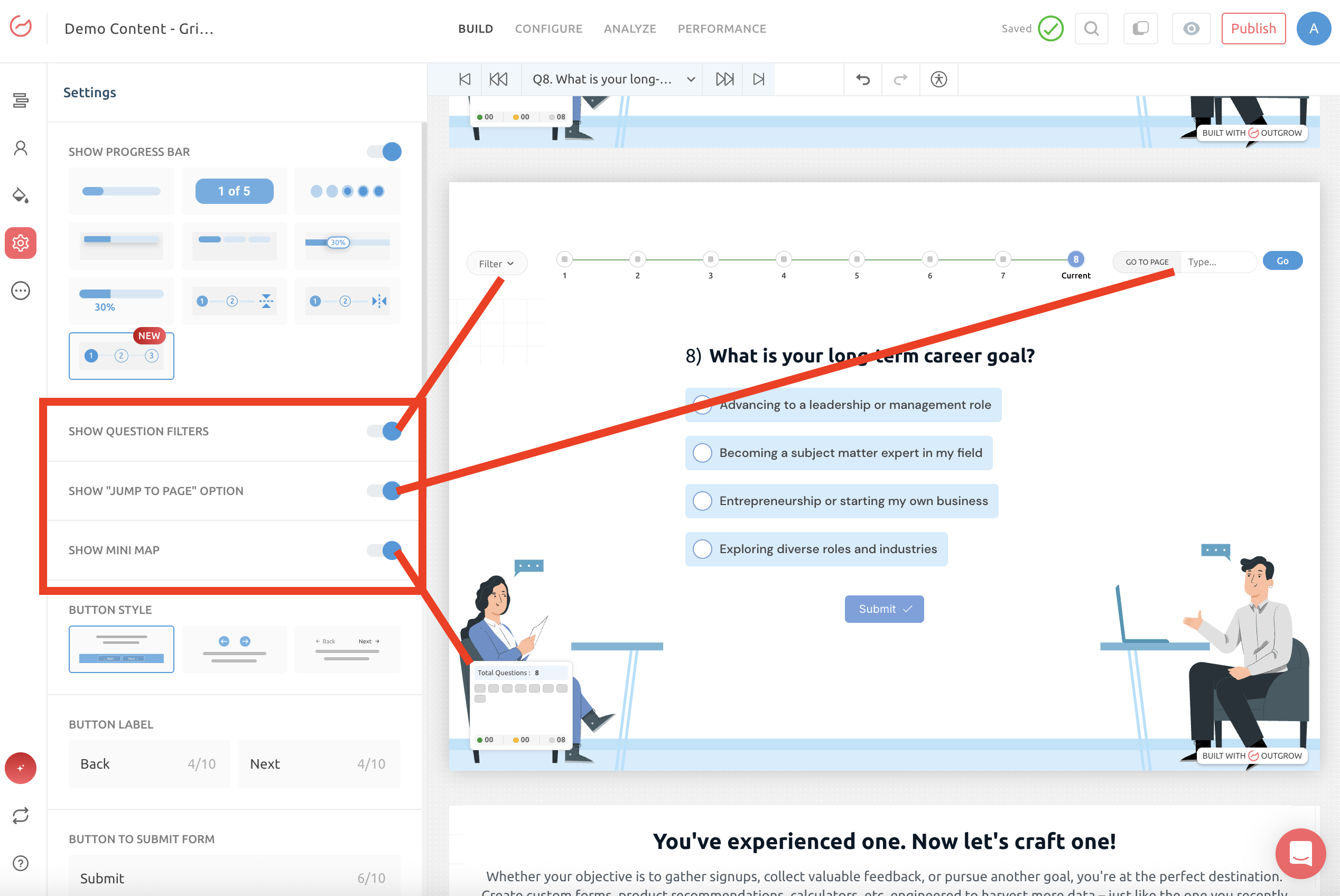
F. Make sure you click on Go Live/Publish to save your changes. In your live content, the section below demonstrates how the Grid View lets users switch between questions or slides.
In case you still have any questions or concerns, feel free to reach out to us at [email protected], and we will be happy to assist you further.
Updated 10 months ago