
Configuring Native Integration Between Outgrow And Clevertap
CleverTap is a comprehensive, AI-powered customer engagement and retention platform designed for B2C brands to analyze user behavior, personalize marketing messages, and increase customer lifetime value. It unifies data from web and mobile apps to create targeted, omni-channel campaigns (push, email, SMS) that boost retention.
Here's what you will need to get started:
A. An Outgrow account with an active subscription plan.
B. An active Clevertap account.
C. A live Outgrow content piece.
How to configure the integration
To configure the integration between Outgrow and Clevertap, here are the steps that you need to follow:
1. Log in to your Outgrow account and select the appropriate content piece.
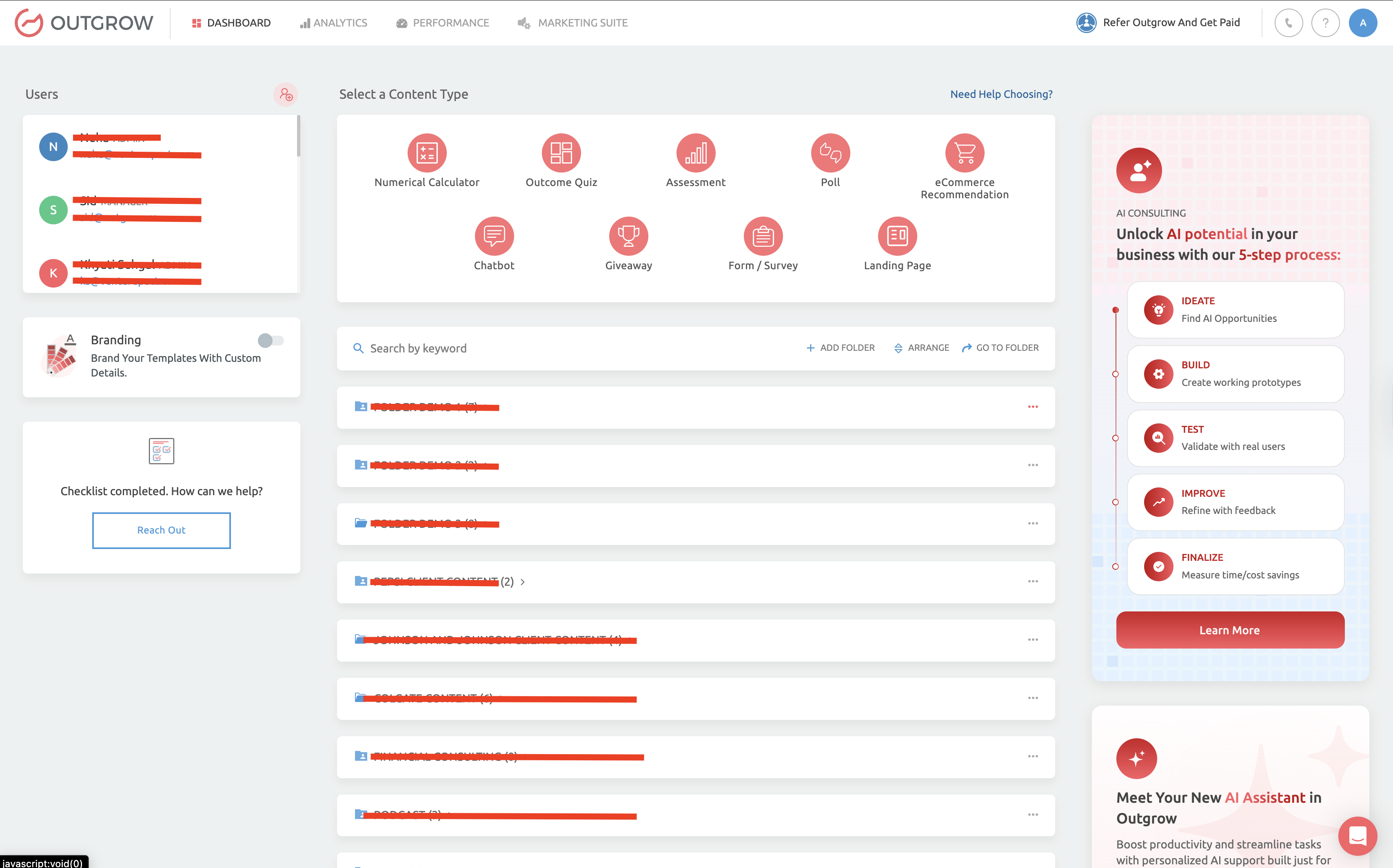
2. Open the respective content in Build mode.
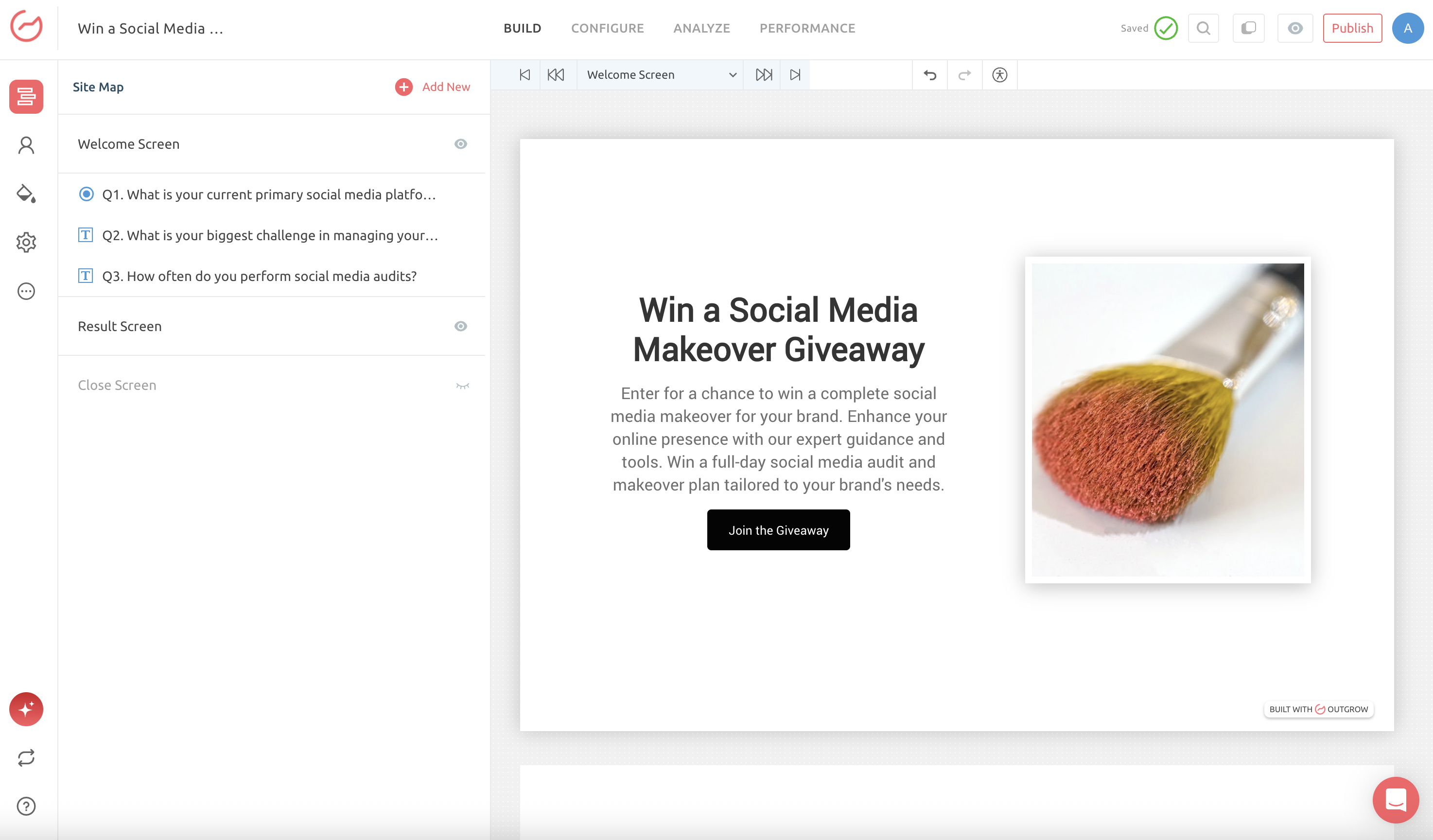
3. Click on the Configure tab and then navigate to the Integrations sub-tab. Under Integration, go to Native Integrations and scroll down to Clevertap Integration.
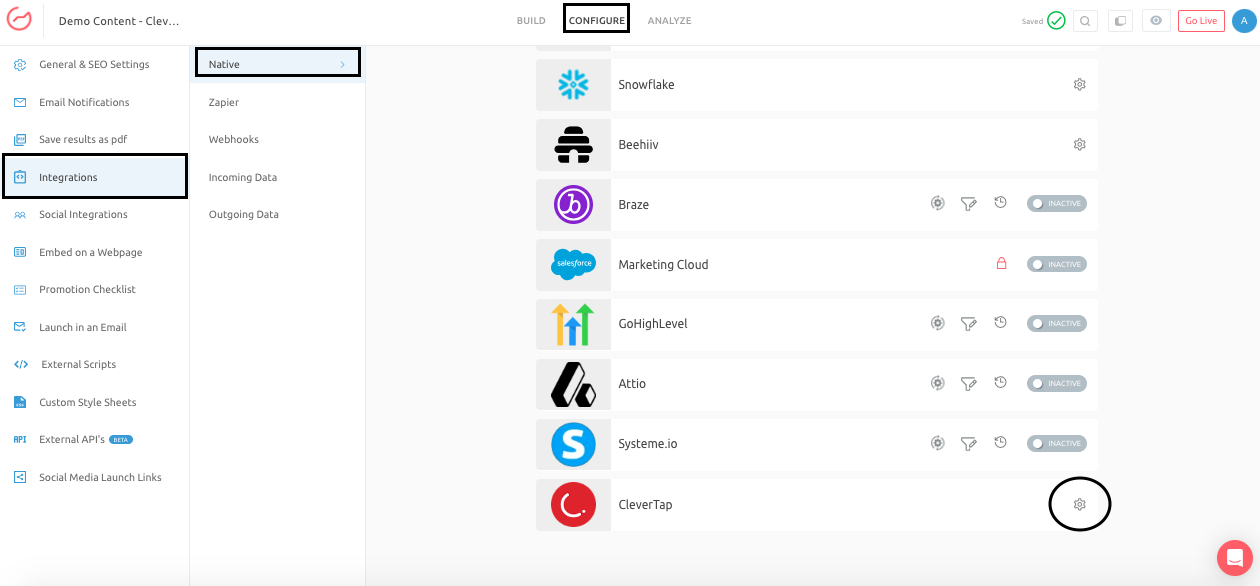
4. Click the configure icon for native integration with Clevertap.
5. To connect your Outgrow and Clevertap account, you will require your Clevertap Project ID and Passcode.
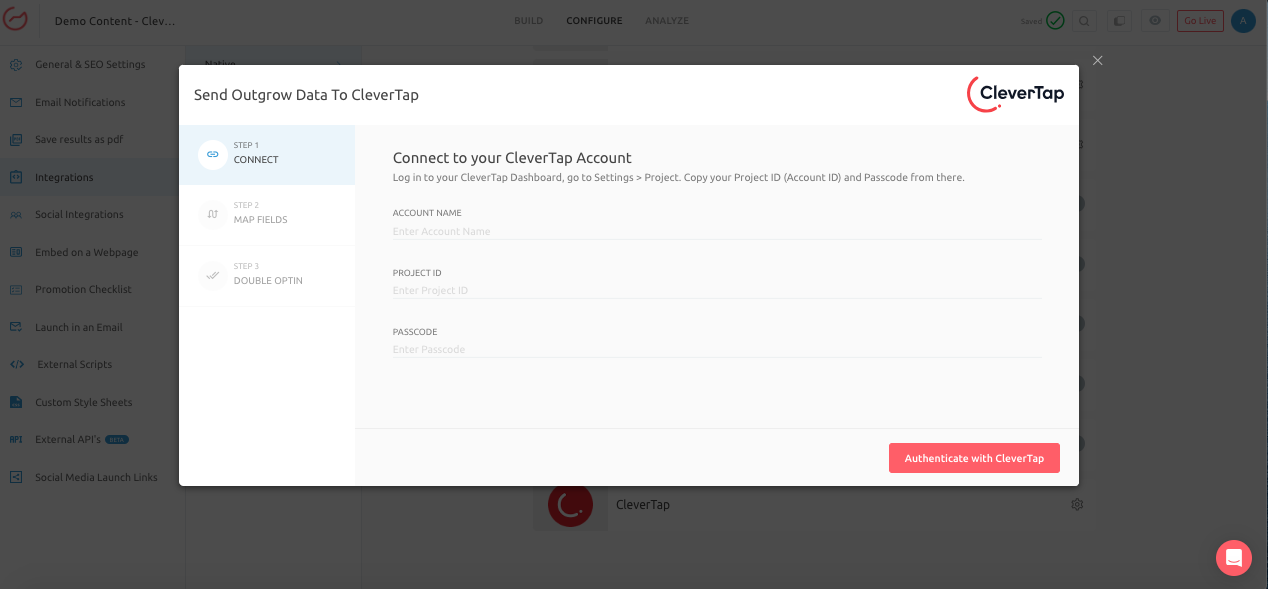
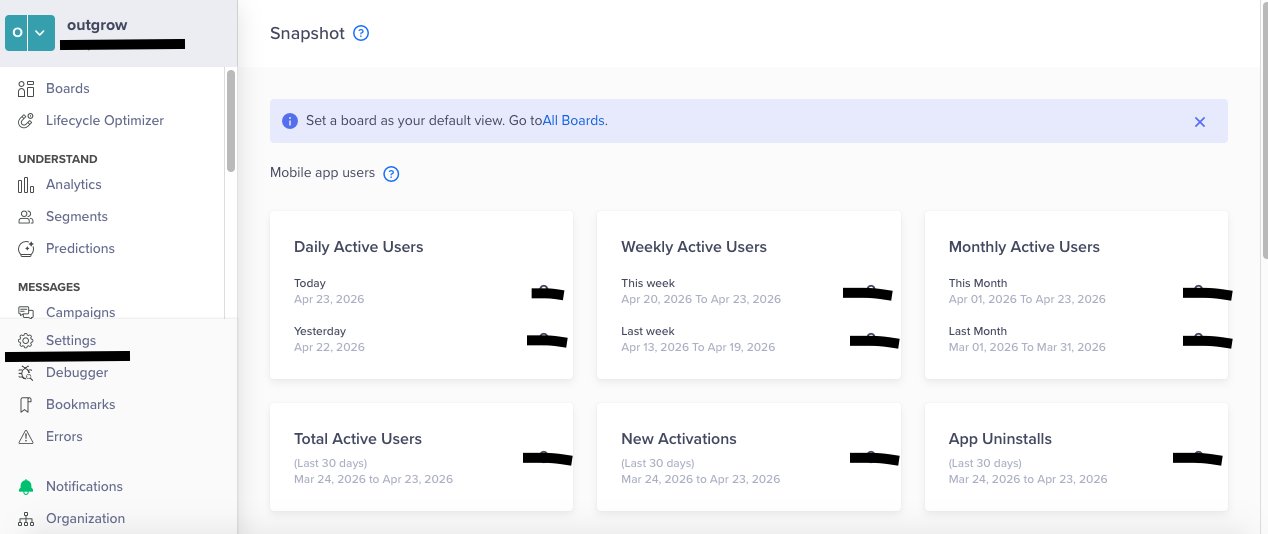
6. To get the Project ID and Passcode, you need to log in to your Clevertap account, and navigate to Settings tab.
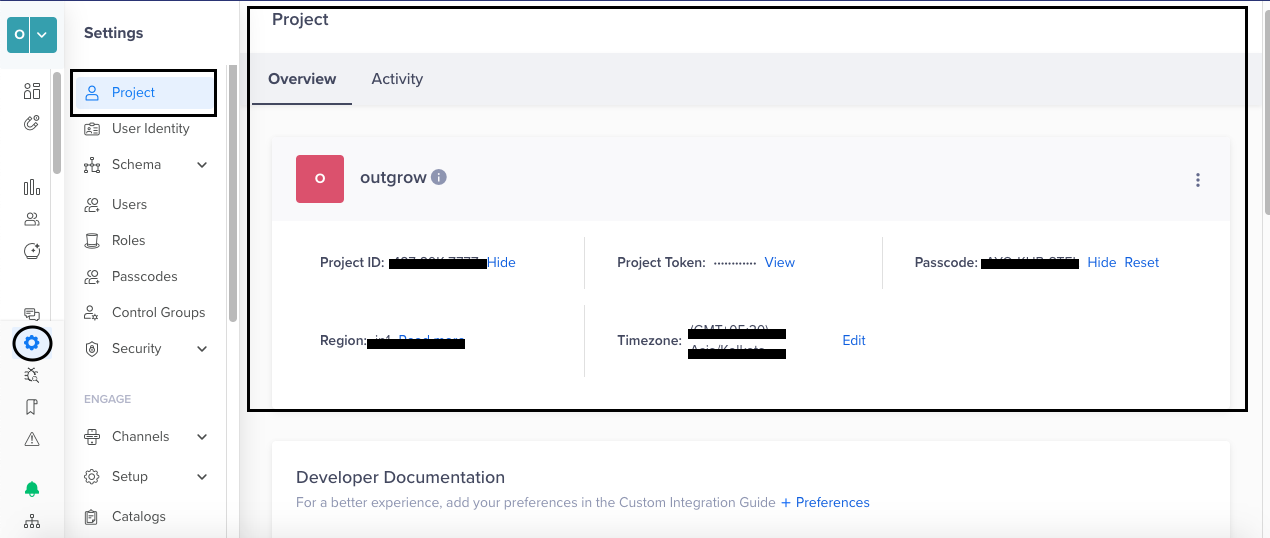
6.1. Under Settings, navigate to Project, and on the Overview tab, copy the Project ID and the Passcode.
6.2. Add the Project ID and Passcode in the authentication section in your Outgrow account and click on Authenticate With Clevertap.
7. Once the integration is authenticated, choose whether you want to proceed with Contacts or Segment.
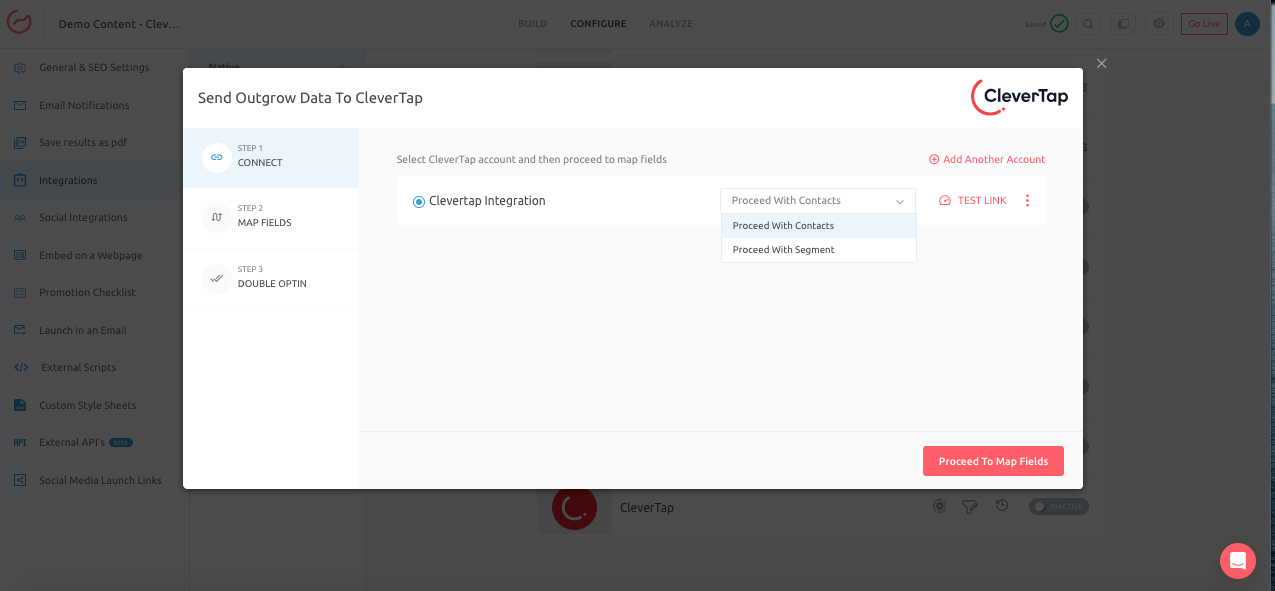
8. Map the corresponding Outgrow fields to the Clevertap fields to facilitate data transfer.
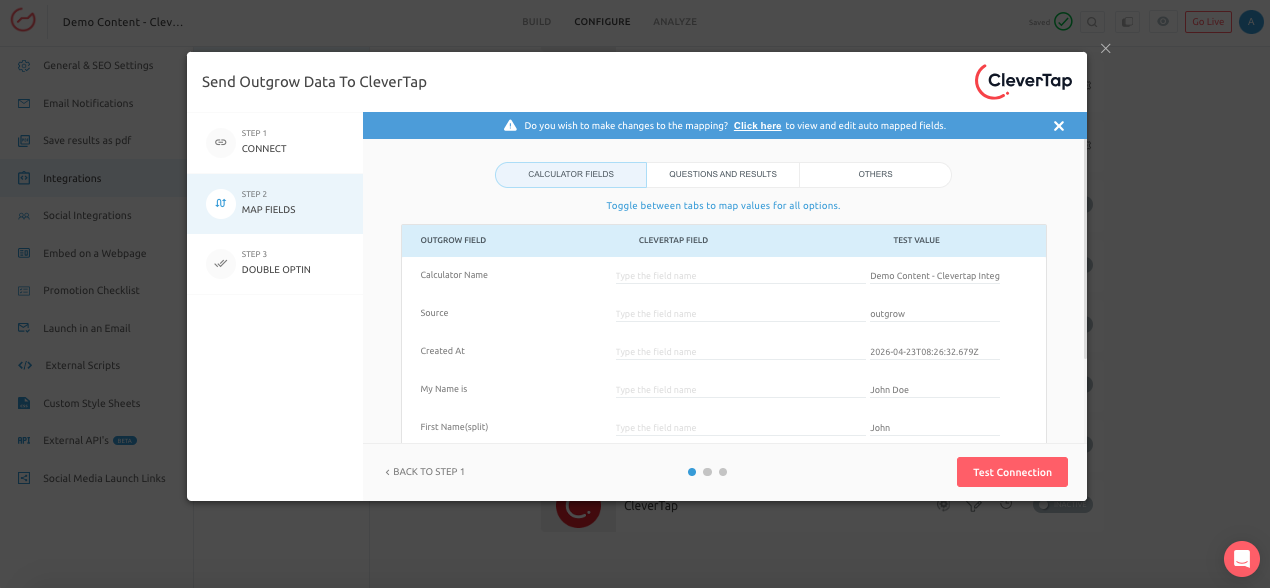
9. Click on Test Connection to authenticate the field mappings.
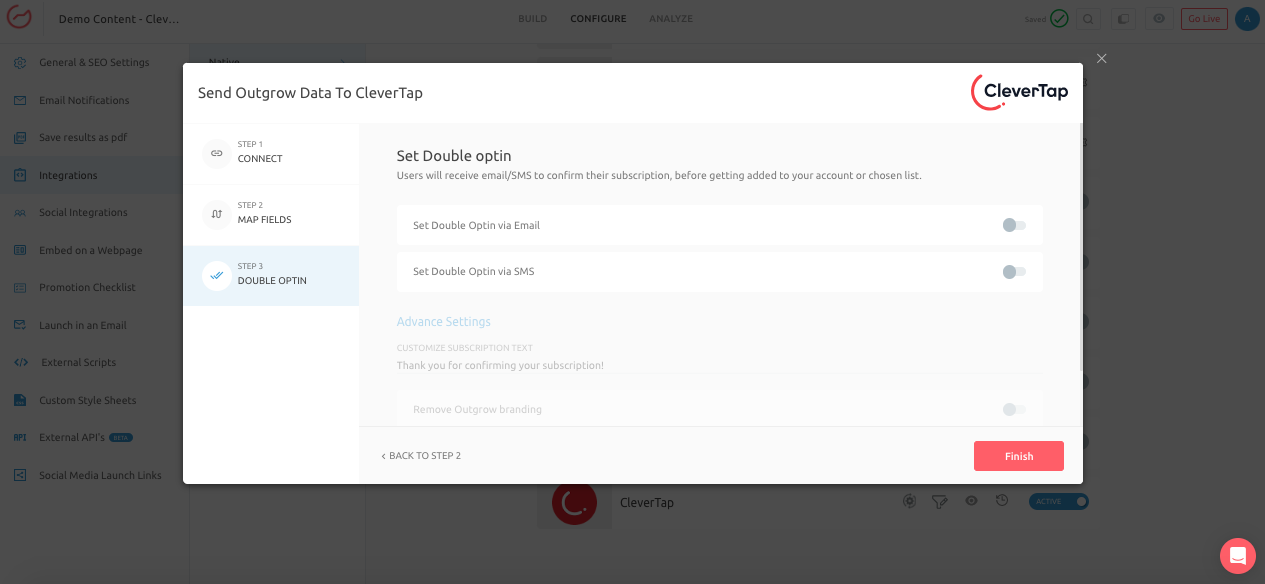
10. You can configure Double Opt-In functionality if required, otherwise, click Finish to save the configuration and activate the integration.
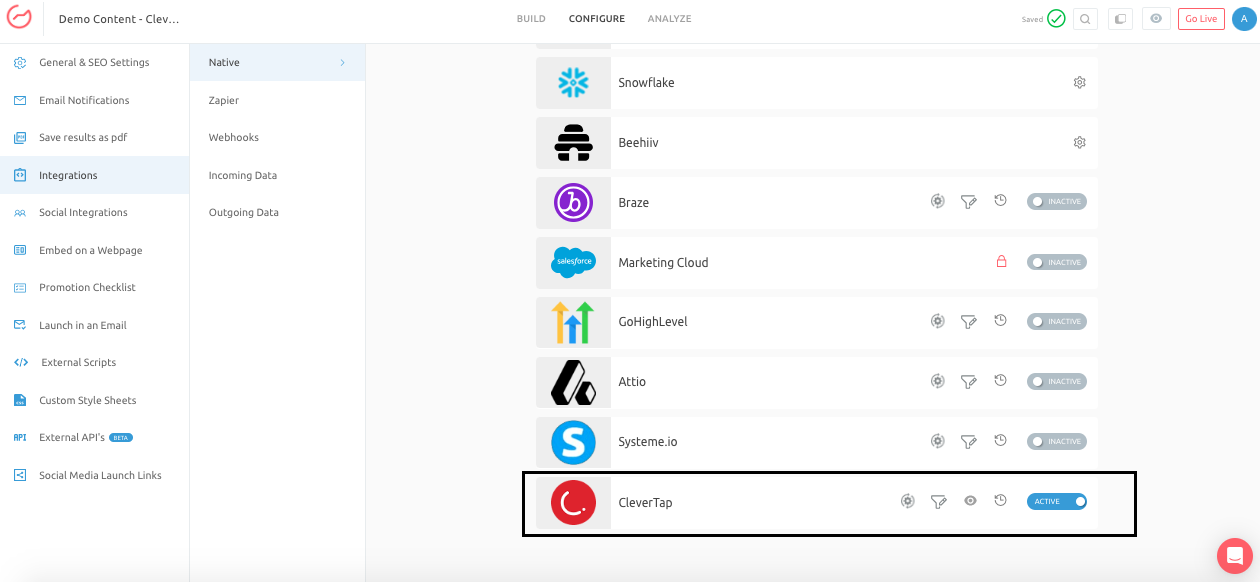
11. Once the integration is successfully configured, under Native Integration, you will see the active toggle enabled for Clevertap integration.
Additional integrations related actions
After configuring and activating the integration, here are a few additional actions you can perform. These options are:
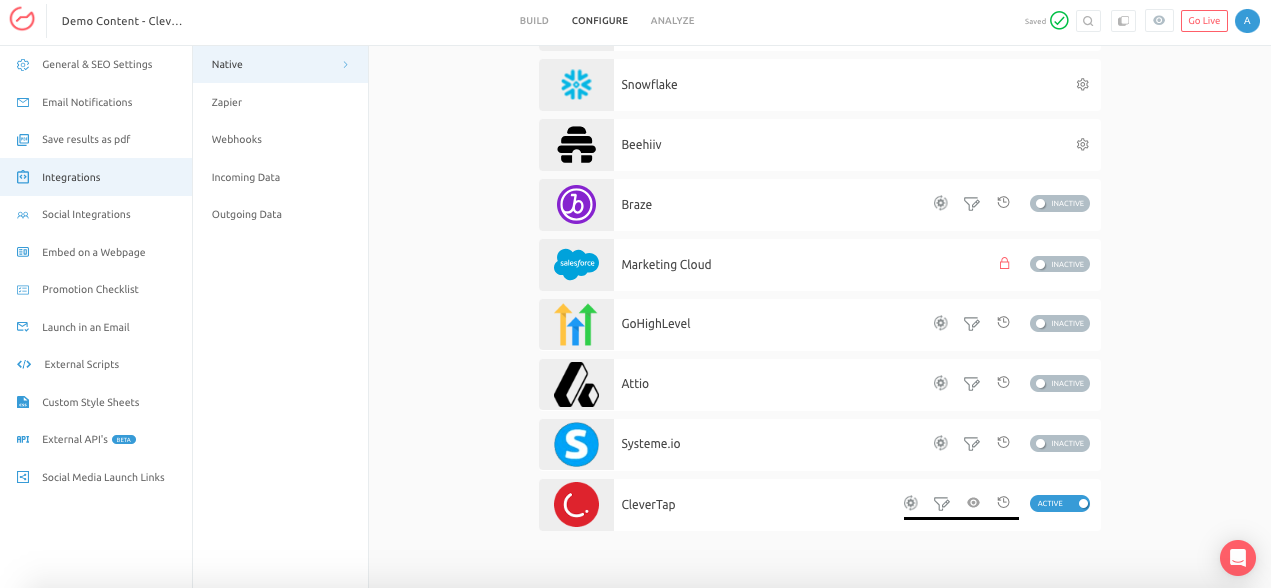
A. Reconfigure: If your Clevertap credentials have changed or you want to connect Outgrow to a different Clevertap account, you must reconfigure your integration to continue receiving Outgrow leads in your Clevertap account.
B. View Mapping:** If you need to review the fields you have mapped to configure your Outgrow and Cleartap integration, click View Mapping.
C. Task History: **This section lists all the leads sent to Clevertap. If leads fail to sync, they will be shown as "Failed." If this happens, you can sync the leads to your Clevertap account after reconfiguring. If the leads are waiting to be synced, they will have the status "Waiting."
D. Filter: If you want to set up a quick filter using First Name, Last Name, and Email Address to see whether the lead was sent via CleverTap, you can use this feature.
Important Note
For every Outgrow content piece you create, you will have to activate or deactivate the integration from the Configuration section in the builder, in order to start or stop sending leads collected in Outgrow to Clevertap.
If you have any questions or concerns, please feel free to reach out to us at [email protected], and we will be happy to assist you further.
Updated 6 months ago