

Configuring Two Factor Authentication (2FA) In Outgrow
Two Factor Authentication (2FA) provides an additional layer of security for your Outgrow account by requiring a second form of verification during login. This ensures that even if your password is compromised, unauthorized access to your account is prevented.
How to Enable 2FA for Your Outgrow Account
Follow the steps below to configure Two Factor Authentication in your Outgrow dashboard:
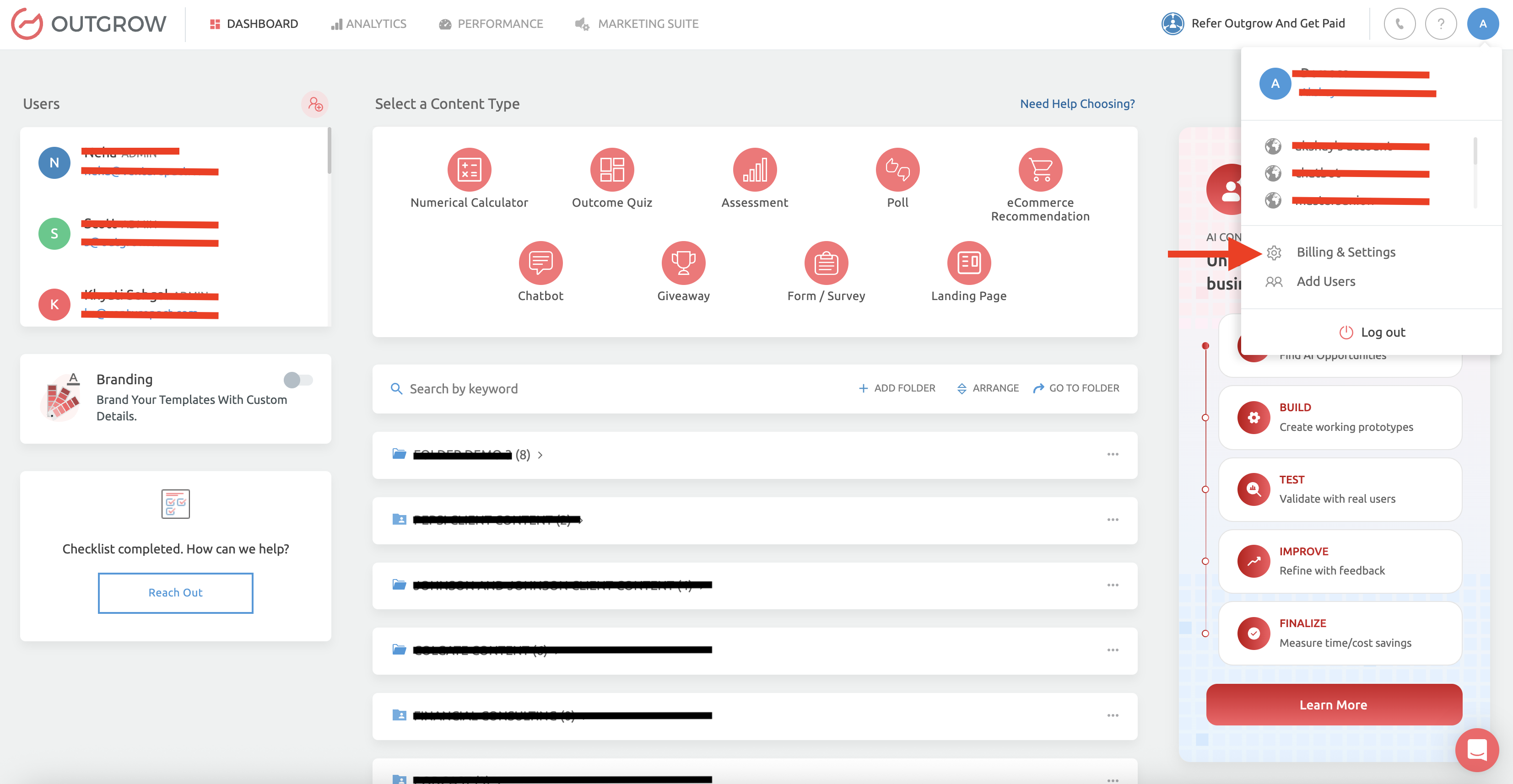
1. Access Security Settings: Log in to your Outgrow account, then click your profile icon in the top-right corner of the dashboard. From the dropdown menu, select Billing & Settings.
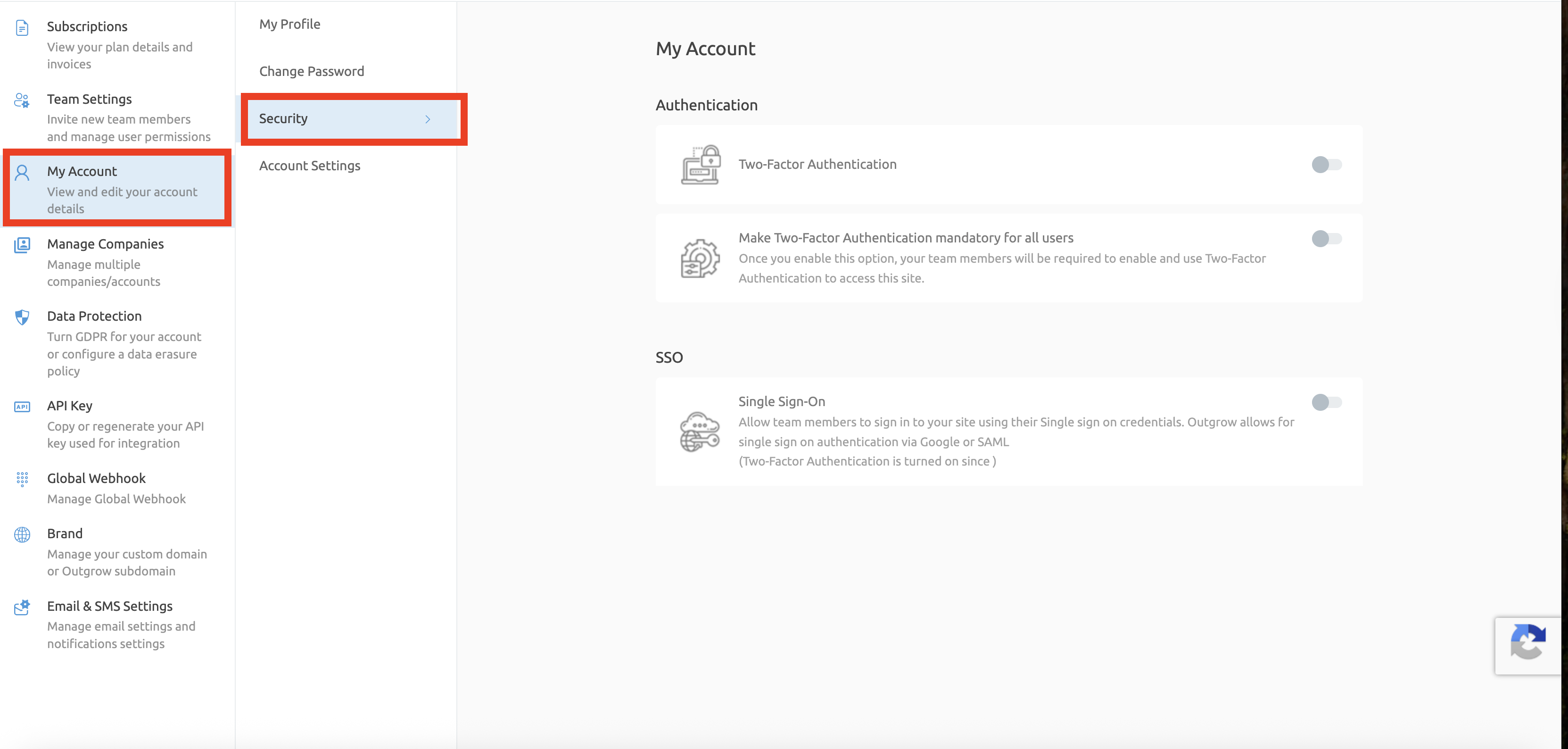
2. Enable Two-Factor Authentication: In the left-hand navigation panel, click on My Account, and then select Security. Within the Authentication section, locate the Two-Factor Authentication option and toggle it on. Once enabled, a setup window will appear to guide you through the configuration process.
3. Configure Your Authenticator App: In the setup window, you will see a QR code and a manual setup key.
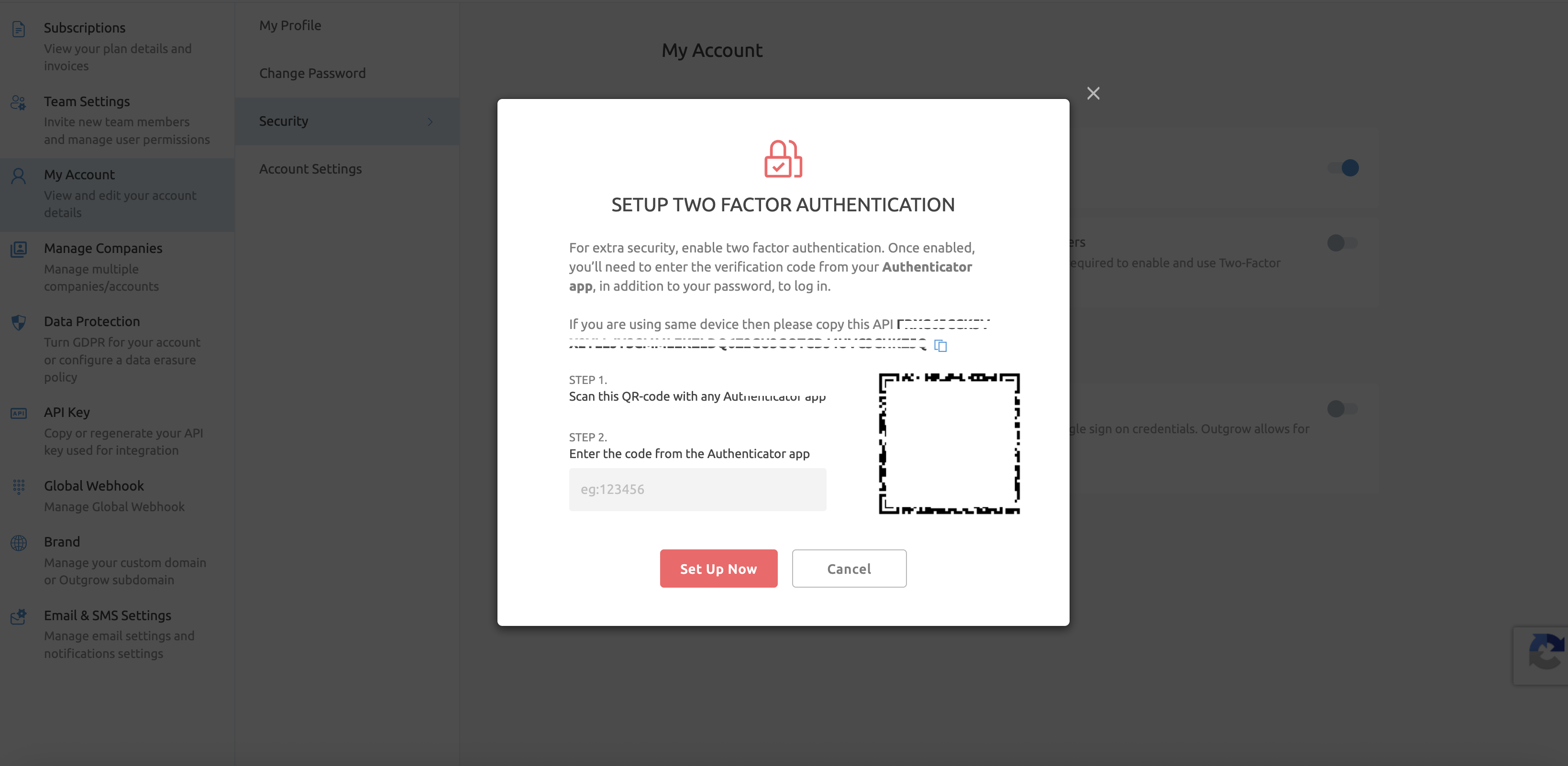
4. Scanning Code Using Authenticator: Open an authenticator application such as Google Authenticator, Microsoft Authenticator, or Authy on your mobile device. You can either scan the QR code using the app or manually enter the provided key.
5. Verify the Authentication Code: After completing the setup in your authenticator app, a six-digit verification code will be generated. Enter this code into the input field provided in Outgrow and click Set Up Now to complete the process.
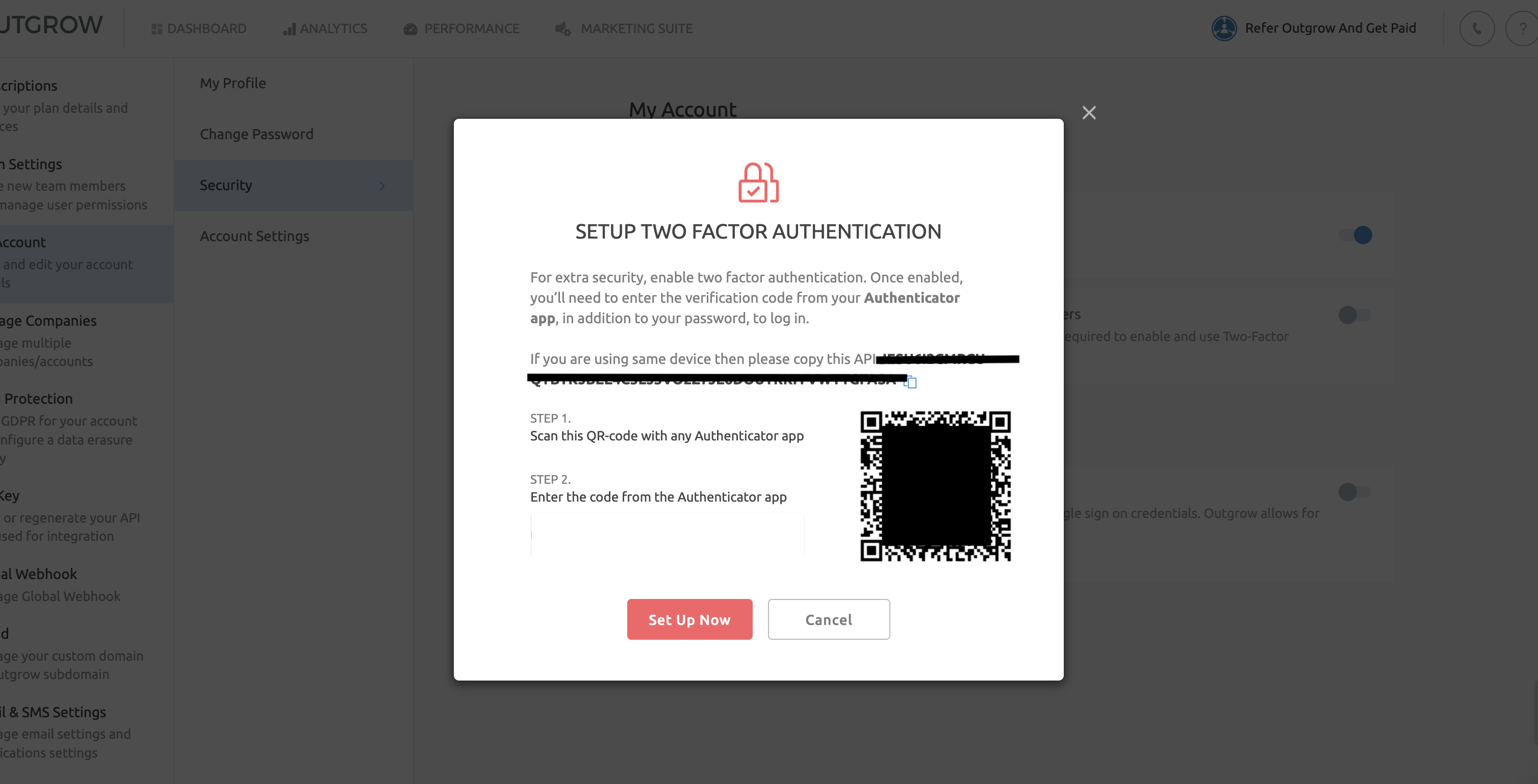
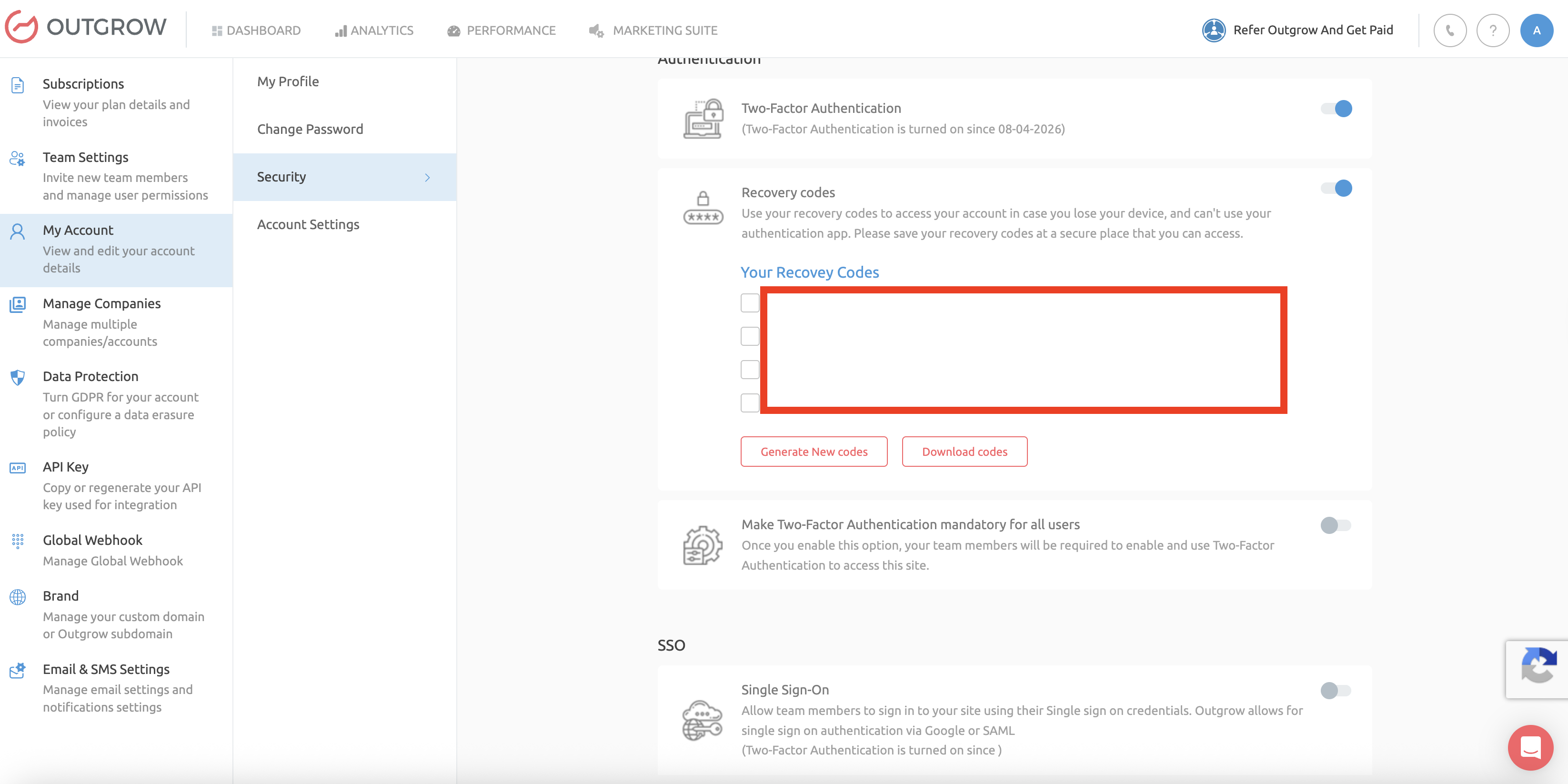
6. Confirmation: Once the verification is successful, Two-Factor Authentication will be enabled for your account. Upon enabling 2FA, Outgrow generates a set of recovery codes. These codes allow you to access your account if you lose access to your authenticator device.
It is strongly recommended that you download or securely store these recovery codes. Each code can only be used once. You can generate new codes or download them again at any time from the Security section.
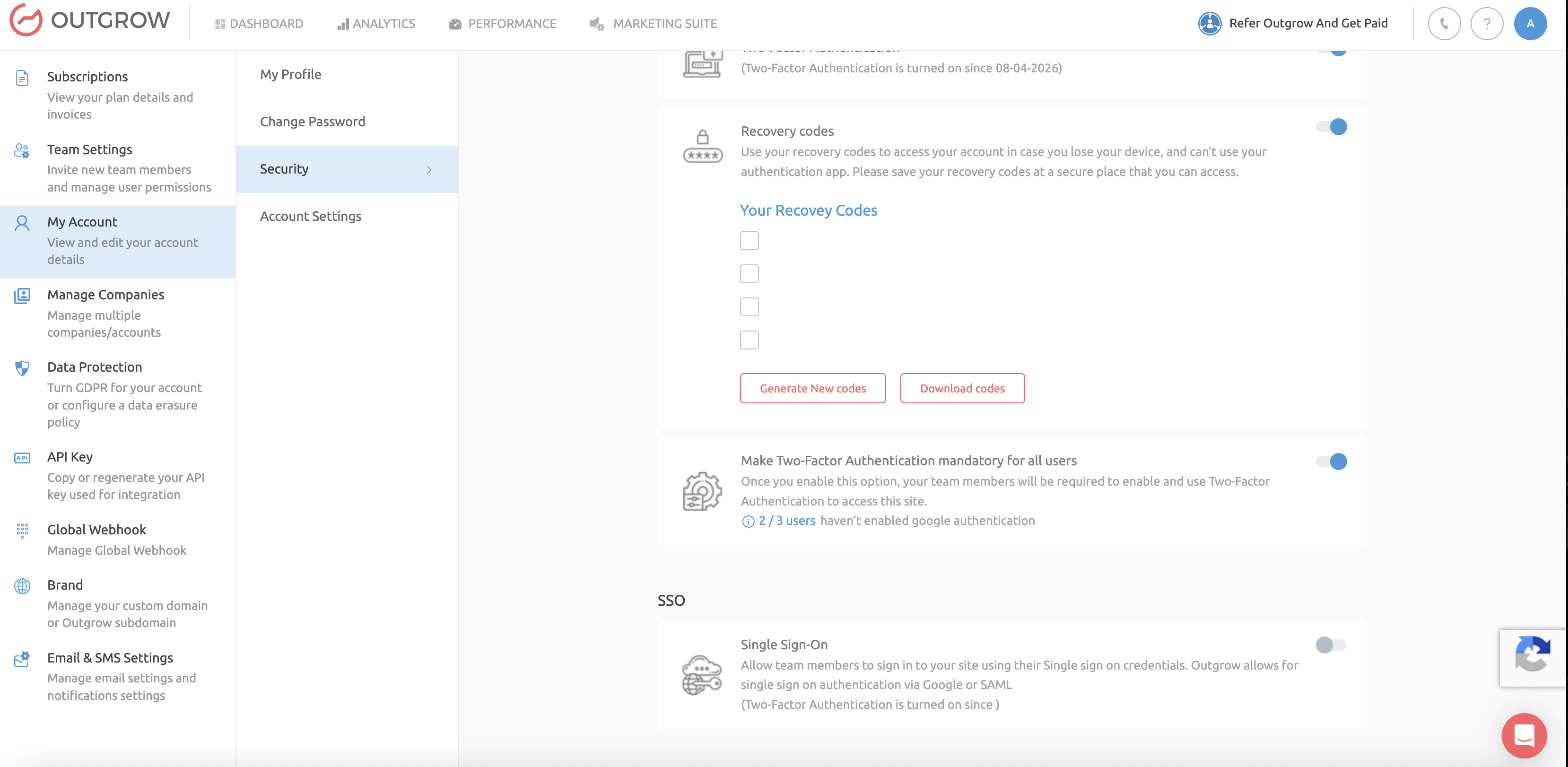
7. Enforcing 2FA for Team Members: Account administrators can make Two-Factor Authentication mandatory for all users. When this setting is enabled, all team members must configure 2FA before accessing their accounts.
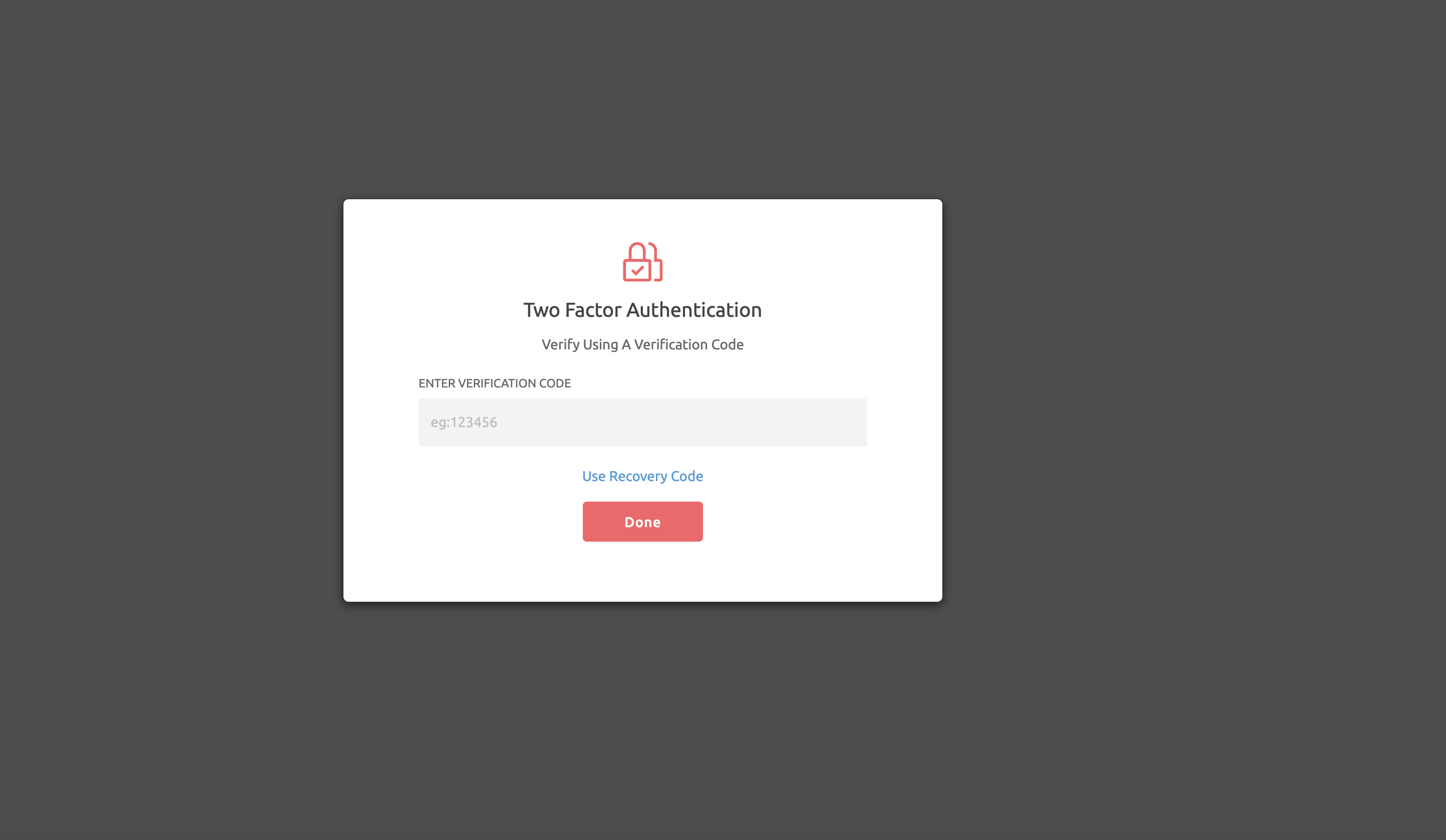
8. Logging in with 2FA: After enabling 2FA, each login will require an additional verification step. After entering your email and password, you will be prompted to provide a verification code from your authenticator app. Enter the code and click Done to access your account.
IMPORTANT NOTE
Outgrow also supports Single Sign-On (SSO). If SSO is configured, authentication requirements, including multi-factor authentication, may be managed through your identity provider. You can learn more about configuring SSO here.
Troubleshooting
If you lose access to your authenticator app, you can use one of your recovery codes to log in. If all recovery codes are unavailable, please contact Outgrow support for assistance. If you encounter issues with verification codes, ensure that your device time is synchronized correctly, as authenticator codes are time-based and refresh every few seconds.
Best Practices
For enhanced security, it is recommended to enable 2FA for all users, especially administrators. Use a trusted authenticator application and store recovery codes in a secure location to prevent loss of access.
Feel free to use our chat tool on the bottom right or reach out to us at [email protected] in case you have any questions, and our team can help you with a quick solution.
Updated 7 months ago